Merkury Camera Setup Guide 2026: Installation, Geeni App & Troubleshooting
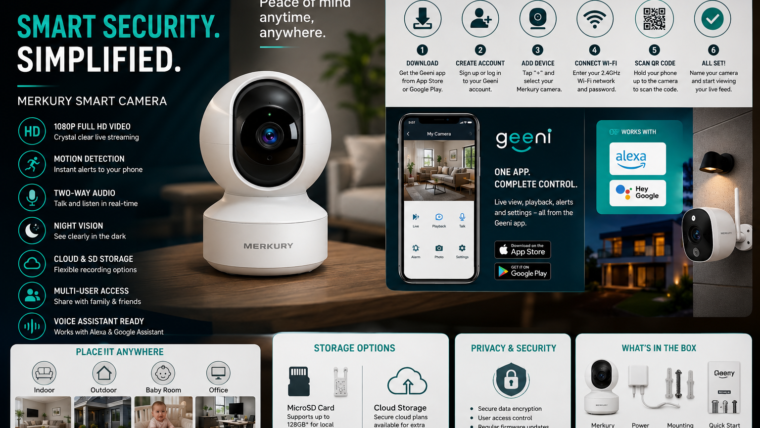
Merkury smart cameras provide affordable home security with features like HD video, motion detection, two-way audio, night vision, and remote monitoring through the Geeni or Merkury Smart app.
Popular Merkury Camera Models
- Merkury Indoor Smart Camera
- Merkury Outdoor Security Camera
- Merkury Pan & Tilt Camera
- Merkury Floodlight Camera
- Merkury Smart Doorbell Camera
Key Features
- 1080p HD video streaming
- Motion detection alerts
- Two-way audio
- Infrared night vision
- Cloud and microSD card storage
- Remote viewing from anywhere
- Alexa and Google Assistant support
- Multi-user sharing
What’s Included in the Box?
- Merkury camera
- Power adapter and cable
- Mounting bracket and screws
- Quick start guide
- Reset pin (selected models)
Before You Begin
- Stable 2.4 GHz Wi-Fi network
- Your Wi-Fi password
- Android or iPhone smartphone
- Geeni or Merkury Smart app installed
- MicroSD card (optional)
Download the App
Download the Geeni or Merkury Smart app from the Google Play Store or Apple App Store and create an account.
How to Set Up a Merkury Camera
Step 1: Power On the Camera
Plug the camera into a power source and wait for the status light to begin blinking. Official setup instructions.
Step 2: Reset the Camera
Press and hold the reset button for 5–10 seconds until you hear a prompt tone or see the indicator light flash. :contentReference[oaicite:0]{index=0}
Step 3: Open the App
Launch the app and tap the + icon to add a new device. Select Wi-Fi Camera. :contentReference[oaicite:1]{index=1}
Step 4: Connect to Wi-Fi
Choose your 2.4 GHz Wi-Fi network and enter the password. Make sure Bluetooth and Location permissions are enabled on your smartphone. :contentReference[oaicite:2]{index=2}
Step 5: Scan the QR Code
Hold your phone approximately 6–8 inches from the camera lens until you hear the confirmation tone. Increase screen brightness if needed. :contentReference[oaicite:3]{index=3}
Step 6: Complete Pairing
Wait for the device to connect and assign a name such as Front Door, Living Room, Garage, or Office. :contentReference[oaicite:4]{index=4}
Best Installation Tips
- Install cameras 7–10 feet above ground.
- Ensure strong Wi-Fi coverage.
- Avoid direct sunlight and reflective surfaces.
- Cover key entry points.
- Avoid pointing the camera at moving trees or busy roads.
Storage Options
Cloud Storage
Optional cloud recording plans may be available through the Geeni platform.
Local Storage
Many Merkury cameras support microSD cards for local video recording.
Smart Home Integration
- Amazon Alexa
- Google Assistant
Example commands:
- “Alexa, show the front door camera.”
- “Hey Google, show the living room camera.”
Common Problems & Solutions
| Problem | Solution |
|---|---|
| Camera not connecting to Wi-Fi | Verify you are using a 2.4 GHz network. |
| QR code not scanning | Increase phone brightness and clean the camera lens. |
| Camera offline | Restart the router and camera. |
| No motion alerts | Enable notifications in the app settings. |
| microSD card not detected | Format the card through the app. |
| Poor video quality | Improve Wi-Fi signal strength. |
How to Reset a Merkury Camera
- Locate the reset button.
- Press and hold for 10 seconds.
- Wait for the indicator light to flash.
- Reconnect the camera using the app.
- Use a strong password.
- Enable two-factor authentication if available.
- Keep the app updated.
- Install firmware updates regularly.
- Share camera access only with trusted users.
Frequently Asked Questions
Does Merkury support 5 GHz Wi-Fi?
No. Most Merkury cameras support only 2.4 GHz Wi-Fi networks. :contentReference[oaicite:5]{index=5}
Can I use a Merkury camera without a subscription?
Yes. Many models support local recording using a compatible microSD card.
Can multiple users access the same camera?
Yes. You can share camera access through the Geeni or Merkury Smart app.
Why is my camera offline?
Weak Wi-Fi signals, power interruptions, or incorrect network settings are the most common causes.
Merkury cameras offer an affordable and easy-to-use home security solution with remote monitoring, smart alerts, and flexible storage options.

Leave a Reply