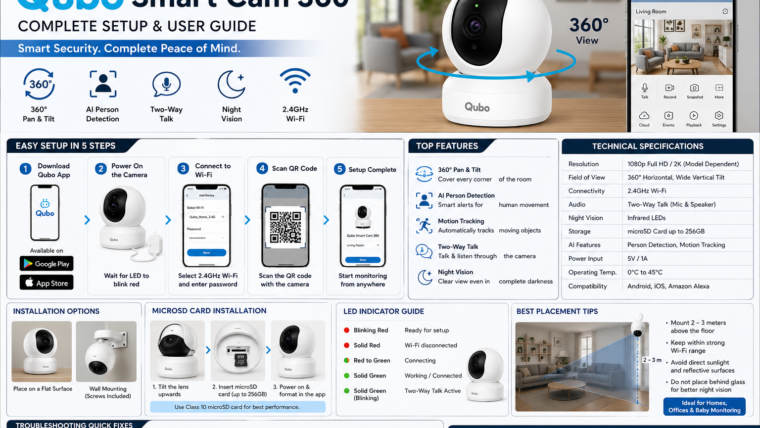
Qubo Smart Cam 360 Setup, Features & Troubleshooting
Learn how to install, configure, and use your Qubo Smart Cam 360 with this complete user guide.
The Qubo Smart Cam 360 is a smart indoor security camera designed for homes, offices, baby monitoring, and elderly care. With 360-degree coverage, AI-powered alerts, two-way communication, and mobile access, it provides comprehensive security monitoring from anywhere.
Qubo Smart Cam 360 Specifications
| Feature | Details |
|---|---|
| Resolution | 1080p Full HD / 2K (Model dependent) |
| Connectivity | 2.4GHz Wi-Fi |
| Field of View | 360° Pan & Tilt |
| Night Vision | Infrared Night Vision |
| Storage | microSD Card up to 256GB |
| Audio | Two-Way Talk |
| Smart Features | AI Person Detection, Motion Tracking |
| Voice Assistant | Amazon Alexa |
What’s Included in the Box?
- Qubo Smart Cam 360
- Power Adapter
- USB Power Cable
- Wall Mount Kit
- User Manual
- Warranty Card
How to Set Up Qubo Smart Cam 360
Download the Qubo App
Install the Qubo app from the Google Play Store or Apple App Store.
Create an Account
Sign up using your mobile number or email address and verify your account.
Power On the Camera
Connect the supplied adapter and wait for the LED indicator to blink red.
Connect to Wi-Fi
Select your 2.4GHz Wi-Fi network, enter the password, and scan the QR code shown in the app.
Complete Setup
Assign a name to your camera and start monitoring live video remotely.
Key Features
360° Pan & Tilt
Control the camera remotely to monitor every corner of the room.
AI Person Detection
Receive alerts only when human movement is detected.
Motion Tracking
The camera automatically follows moving objects within its field of view.
Two-Way Talk
Communicate with family members, visitors, or pets using the built-in microphone and speaker.
Night Vision
View clear footage even in complete darkness using infrared LEDs.
Alexa Integration
Control your camera using compatible Alexa-enabled devices.
Troubleshooting
Camera Offline
- Restart your router.
- Ensure the camera uses a 2.4GHz Wi-Fi network.
- Move the camera closer to the router.
QR Code Not Scanning
- Increase your phone brightness.
- Clean the camera lens.
- Hold the phone 15–20 cm away from the camera.
microSD Card Not Detected
- Use a Class 10 microSD card.
- Format the card in the Qubo app.
- Ensure the card capacity does not exceed 256GB.
Pros & Cons
Pros
- Easy DIY installation
- 360° room coverage
- AI-powered detection
- Two-way audio support
- Alexa compatibility
Cons
- Supports only 2.4GHz Wi-Fi
- Cloud storage requires a subscription
- Indoor use only
Frequently Asked Questions
Does Qubo Smart Cam 360 support 5GHz Wi-Fi?
No, the camera supports only 2.4GHz Wi-Fi networks.
Can I store recordings locally?
Yes, you can use a microSD card with up to 256GB capacity.
How do I reset the camera?
Press and hold the reset button for 10–15 seconds until the LED starts blinking red.
Can multiple users access the camera?
Yes, you can share camera access through the Qubo app.

Leave a Reply