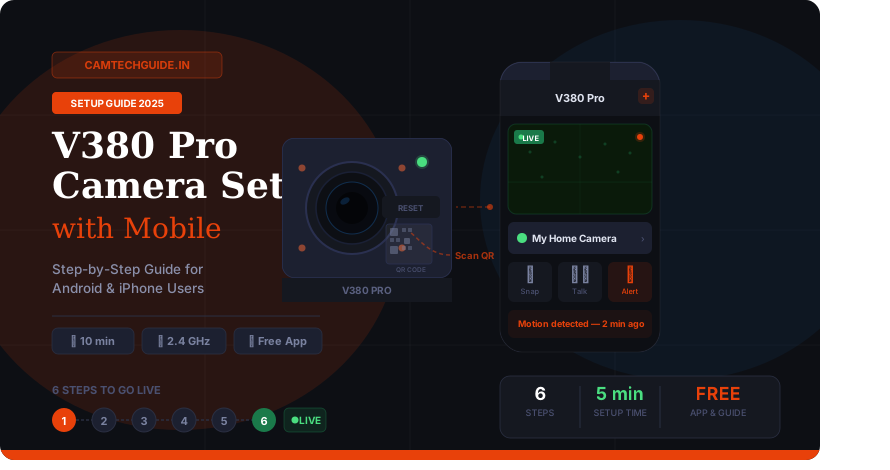
How to Setup V380 Pro Camera with Mobile — Complete Step by Step Guide
The V380 Pro camera is one of the most popular budget IP cameras in India — and for good reason. It gives you live viewing, motion alerts, two-way audio, and night vision all from your phone. But the setup confuses a lot of first-time users. This guide walks you through every single step, from unboxing to watching your first live feed — no technical knowledge needed.
✓ What You Need Before Starting
Before you begin, make sure you have all of these ready. Missing even one item can cause the setup to fail.
V380 Pro Camera
Any model — indoor, outdoor, pan-tilt, or dome. All use the same app.
5V/2A Power Adapter
Usually included in the box. Use the original adapter for stable power.
MicroSD Card (optional)
For local recording. Up to 128GB supported. Format to FAT32 before inserting.
2.4 GHz WiFi Network
Important: V380 Pro does not support 5 GHz WiFi. Check your router settings.
Android or iPhone
Android 5.0+ or iOS 10+. Make sure your phone has a working camera (for QR scan).
Internet Connection
Needed for initial account creation. After setup, local WiFi viewing works offline.
1 Download the V380 Pro App
The camera is controlled entirely through the V380 Pro app. Do not download older or unofficial versions — they may not work with newer cameras.
For Android Users
Open the Google Play Store on your phone. Search for “V380 Pro” and look for the app by Macro Video Technologies. Download and install it. The app is free.
For iPhone (iOS) Users
Open the Apple App Store. Search for “V380 Pro”. Download and install. It’s free on iOS too.
2 Create Your V380 Pro Account
You need a free account to connect your camera and access it remotely. Registration takes under 2 minutes.
Open the App and Tap “Register”
When you first open V380 Pro, you’ll see a login screen. Tap Register at the bottom to create a new account.
Verify with OTP and Set Password
Enter your Indian mobile number (+91) or email. Tap Send Verification Code. Enter the OTP you receive. Then create a strong password (minimum 8 characters).
3 Power On the V380 Pro Camera
Before adding the camera in the app, you need to power it on properly. This step is important — many people skip it and run into issues later.
Insert MicroSD Card First (If Using One)
If you want local video recording, insert your microSD card before powering on the camera. Inserting it after power-on sometimes causes the card not to be detected.
Plug In the Power Adapter
Connect the included 5V/2A Micro-USB adapter to the camera. The camera will play a startup sound — “System is starting”. Wait about 30–60 seconds for it to fully boot.
Understanding the LED Indicator Light
The LED on your camera tells you exactly what is happening. Here’s what each status means:
| LED Status | What It Means | What To Do |
|---|---|---|
| Fast Blue Blink | Camera is booting up | Wait — this is normal |
| Slow Green Blink | Ready — waiting to connect to WiFi | Proceed with app setup |
| Solid Green | Connected to WiFi successfully | Camera is online and ready |
| Fast Red Blink | WiFi connection failed | Check password, restart camera |
4 Add the Camera in the V380 Pro App
Now open the app on your phone and add the camera. This connects your phone to the camera for the first time.
Tap the “+” Button on the Dashboard
On the main screen (Device List), look for a + icon in the top-right corner. Tap it. A small menu will appear — select “Add Camera” or “Add Device”.
5 Connect the Camera to Your WiFi
This is the most important step. There are two ways to connect — the app will guide you to the right one based on your camera model.
Method A — QR Code Scan (Easiest & Most Common)
Tap “Scan QR Code” in the App
After tapping Add Camera, the app will show a QR code scan screen. You’ll point your phone’s camera at the QR code on the camera body (usually on the back or bottom label).
Enter Your WiFi Password in the App
After the QR code is recognised, the app will ask you to select your WiFi network and enter the password. Make sure you select the 2.4 GHz network.
Wait for “WiFi Connected” Voice Prompt
The camera will say “WiFi connected” or “Connection successful”. The LED will turn solid green. The camera will then appear in your device list. This takes 10–30 seconds.
Method B — Access Point (AP) Mode
If QR scanning doesn’t work, use this manual method. It connects your phone directly to the camera first, then sets up WiFi.
Select “Access-Point Established” in App
Tap this option when the camera says “Access-Point established”. The app will show a network name starting with MV+ followed by letters/numbers.
Connect Your Phone to the Camera’s Hotspot
Go to your phone’s Settings → WiFi. You’ll see a network named “MV+XXXXXX”. Tap it to connect. It has no password. Come back to the V380 Pro app after connecting.
Back in App — Select Your Home WiFi
Return to the V380 Pro app. Tap Next. Select your home WiFi (2.4 GHz) from the list and enter the password. Tap Confirm. The camera will connect and appear in the device list.
6 Name Your Camera & Watch Live
Set a Camera Name & Password
Once the camera is added, the app will ask you to give it a name — like “Front Door”, “Baby Room”, or “My Home”. You’ll also set a device access password. This is different from your WiFi password — it protects the camera feed.
Tap “View Device” — You’re Live!
Tap the View Device button and your live camera feed will open. The setup is complete. Your camera is now online and accessible from anywhere.
★ Key Features to Configure After Setup
Once connected, spend 5 minutes setting these up. They make a big difference.
Motion Detection Alerts
Go to Camera Settings → Motion Detection → Enable. Set sensitivity to Medium to avoid false alerts.
Night Vision Mode
Automatically activates in low light. You can set it to Auto, On, or Off in the camera settings.
SD Card Recording
Go to Settings → Storage → Enable continuous or motion-triggered recording to your microSD card.
Two-Way Audio
Tap the microphone icon on the live view screen to talk through the camera speaker in real time.
Share Camera Access
You can share camera access with family members. Go to Device Settings → Share Device → Enter their V380 Pro account.
Pan & Tilt Control
For pan-tilt cameras, control the direction from the live view screen by swiping on the video feed.
! Common Problems & Their Fixes
Stuck during setup? Here are the most common V380 Pro setup problems and how to fix them quickly.
Camera not connecting to WiFi
You are likely on a 5 GHz network. Connect your phone to the 2.4 GHz band and retry. Also check the WiFi password — it’s case-sensitive. Restart the camera by unplugging and plugging back in.
QR code scan fails or not recognized
Clean the QR code label — dust or scratches cause scan failures. Hold the phone steady, 15–20 cm away, in good light. If the label is badly scratched, use the AP Mode (Method B) instead.
App shows “Device Offline” after setup
Check if the camera LED is solid green (connected). If it’s blinking red, the camera lost WiFi. The most common cause is a power cut that changed the router. Re-enter WiFi credentials via Settings → Network Settings in the app.
Live view is blurry or laggy
Tap the HD/SD toggle on the live view screen — switch to SD for slower connections. Also check if many devices are using your WiFi at the same time. Position the camera closer to your router for a better signal.
MV+ WiFi network not showing up
The camera needs to be in AP mode. Press the Reset button on the camera for 5 seconds until you hear a voice prompt. Then retry setup from Step 4. Make sure you’re within 2 metres of the camera while setting up.
No sound / two-way audio not working
Go to your phone Settings → Apps → V380 Pro → Permissions → Enable Microphone. On iPhone, go to Settings → Privacy → Microphone → turn on V380 Pro.
? Frequently Asked Questions
Can I use V380 Pro camera without internet?
Yes — for local viewing only. If your phone and camera are on the same WiFi network, you can watch the live feed without an internet connection. However, remote access from outside your home (like viewing from office or while travelling) requires the V380 relay servers, which need internet. Motion alert notifications also need internet to reach your phone.
How many people can view the V380 Pro camera at the same time?
You can share the camera with multiple accounts using the Share Device feature. However, V380 Pro cameras typically allow only 3–5 simultaneous viewers on the same feed. Too many viewers can cause the stream to lag or disconnect for some users.
Is V380 Pro camera safe? Can someone else access my camera?
The camera is protected by your account login and the device password you set during setup. Use a strong, unique password and never share your login credentials. Avoid setting easy passwords like “12345” or “admin”. Also keep the app updated — security patches are included in newer versions.
Can I connect V380 Pro to 5G WiFi?
No. V380 Pro cameras only support 2.4 GHz WiFi. They do not connect to 5 GHz networks. If your router broadcasts both on the same name, you’ll need to either separate them in your router settings or temporarily disable the 5 GHz band during setup.
What is the maximum SD card size for V380 Pro?
Most V380 Pro cameras support up to 128GB microSD cards. Use a Class 10 or UHS-I rated card for smooth recording. Always format the card inside the camera (not on your computer) for best compatibility. Go to Settings → Storage → Format SD Card in the app.
V380 Pro camera setup complete but no live view — what to do?
First check if the camera LED is solid green (if so, it’s connected). If the app shows “loading” but never plays, try switching from HD to SD resolution in the live view screen. If that doesn’t help, close and reopen the app. A router restart often fixes this too. If still stuck, do a factory reset (hold Reset button 5 seconds) and redo the setup.

Leave a Reply